In this article we will walk you thru how to access your training courses on the portal after your account is created.
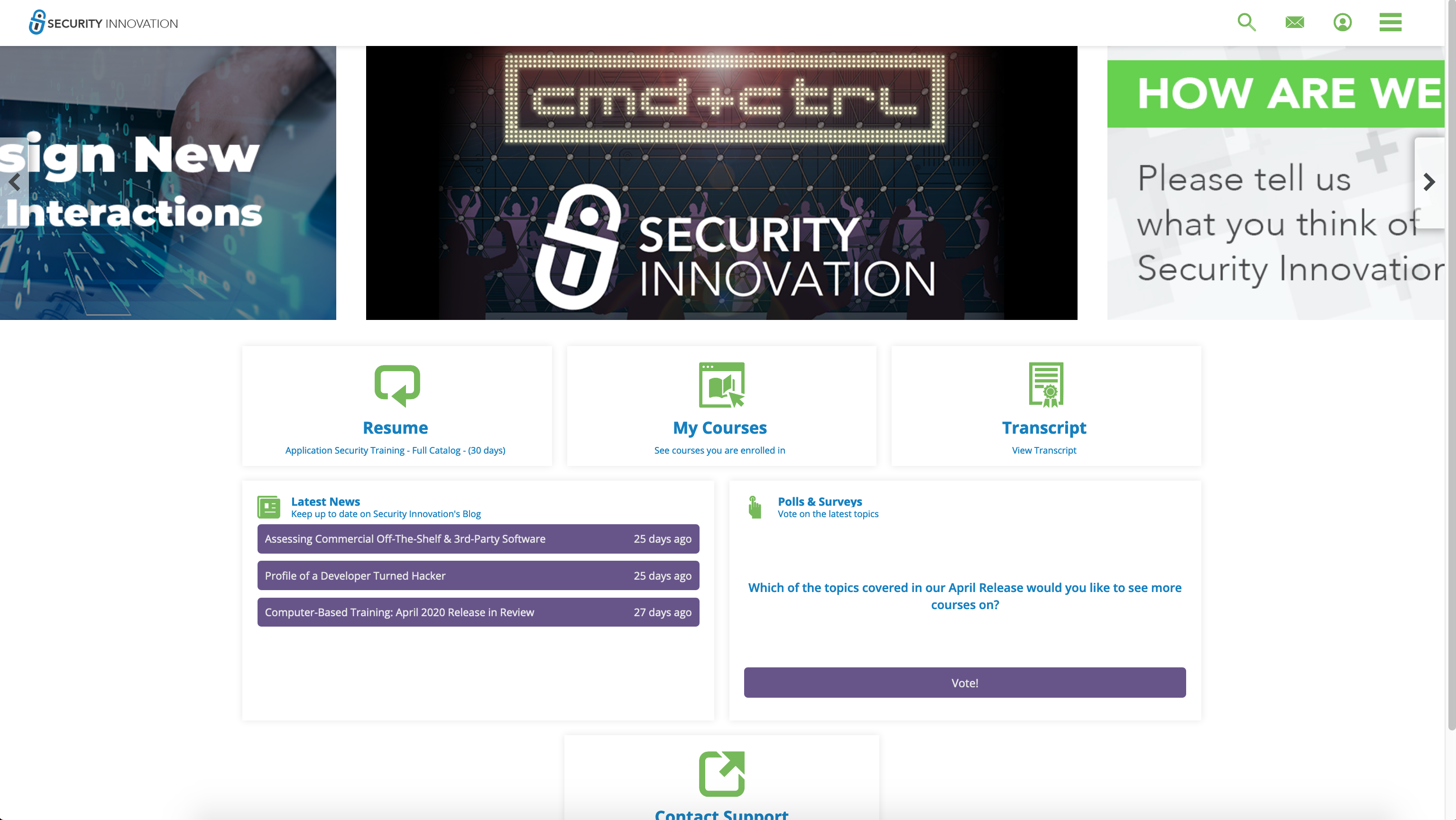
When you access the eLearning portal, you will see the training Dashboard.
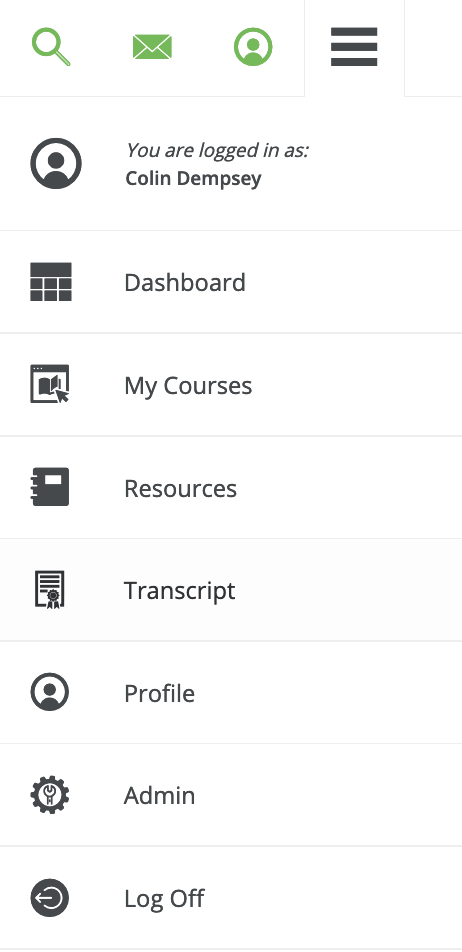
From the drop-down menu located in the upper right you can navigate directly to several sections within the portal. Including the My Courses view and Transcript accessible from the dashboard
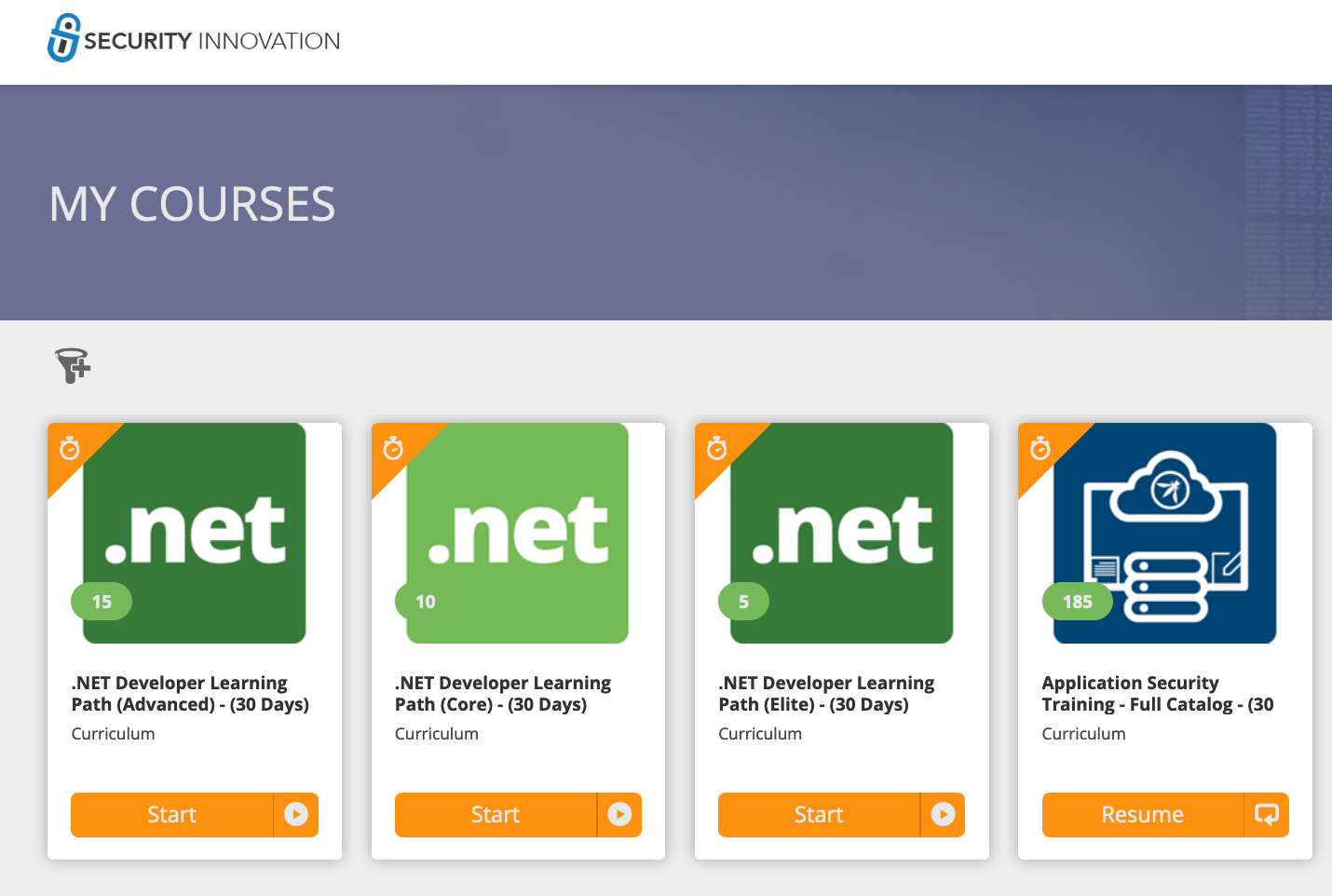
From the My Courses section you can access the learning path or courses you have been automatically registered to when your account was created. Each learning path is comprised by a group of on-line courses, to access the courseware assigned to you click on the name of a learning path bundle or the Start button.
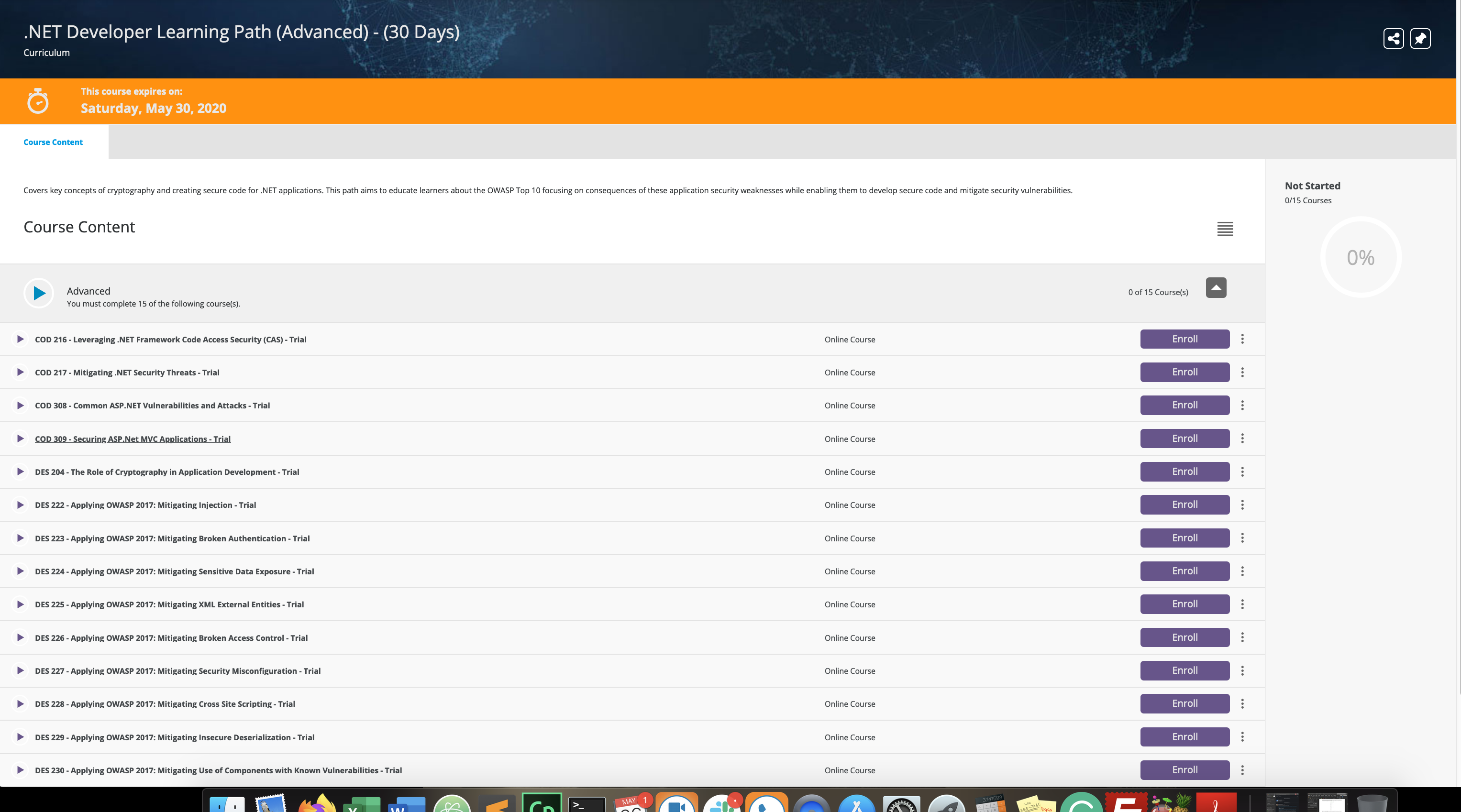
When you click on a learning path you will have access to the different on-line courses included in that Group.
Once you click on an on-line course you will see both lessons that are included in it.
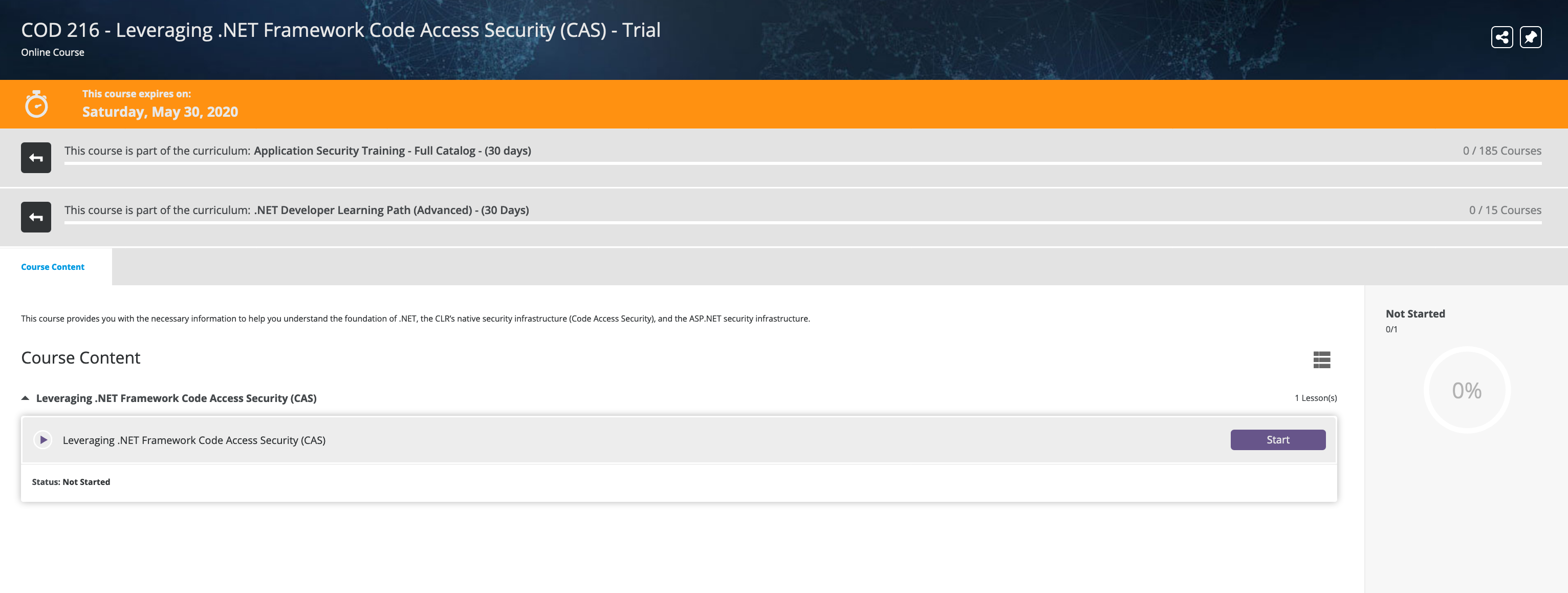
Each on-line course will only be considered Completed when:
- The lesson's exam has been completed.
- The grade achieved must be of at least 70%. You will be allowed as many attempts as needed to achieve a passing grade.
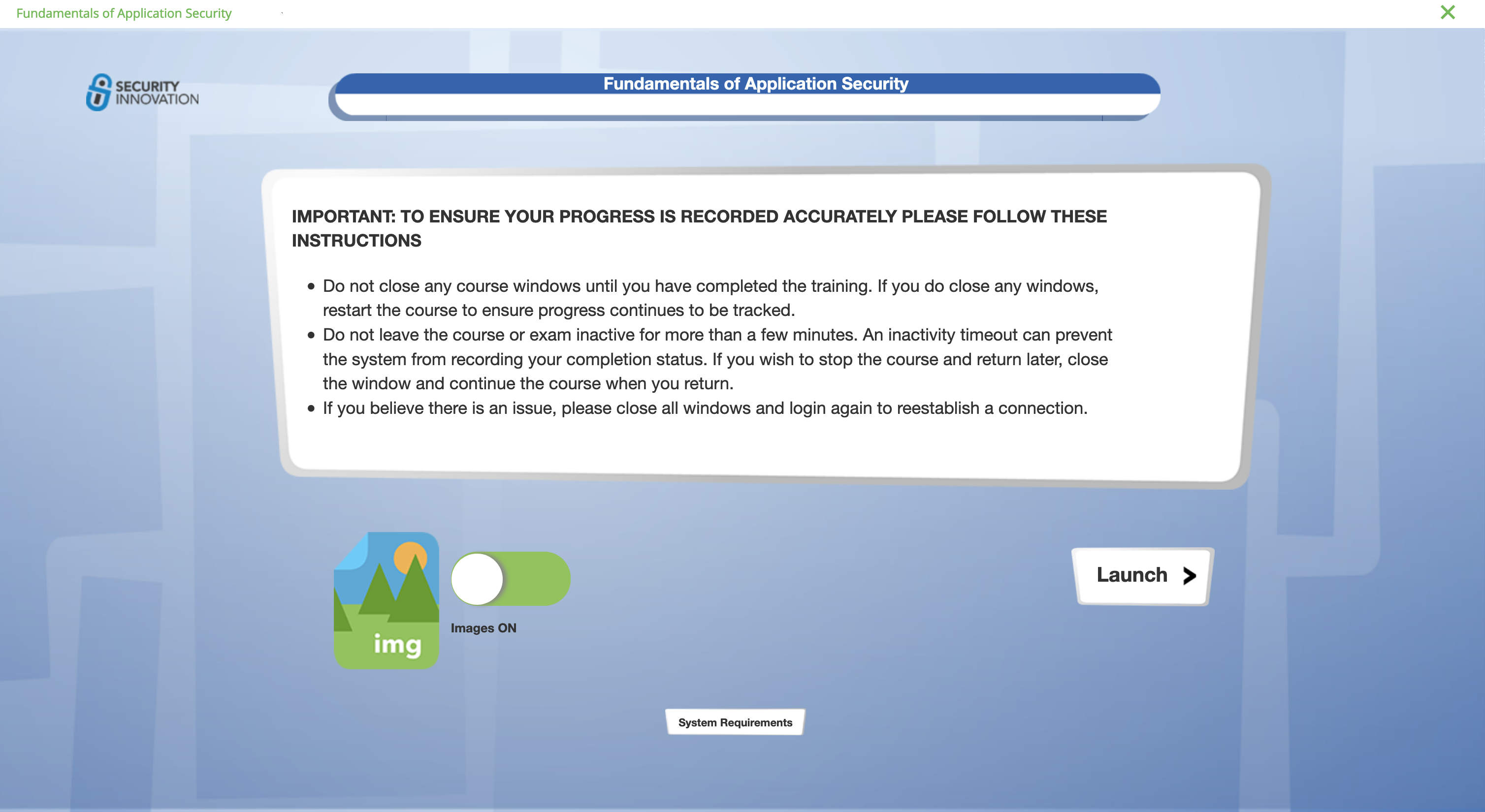
When you launch the course you will the Important Information screen which provides details about the course and allows you toggle images on or off, this feature is for improved performance with screen readers.
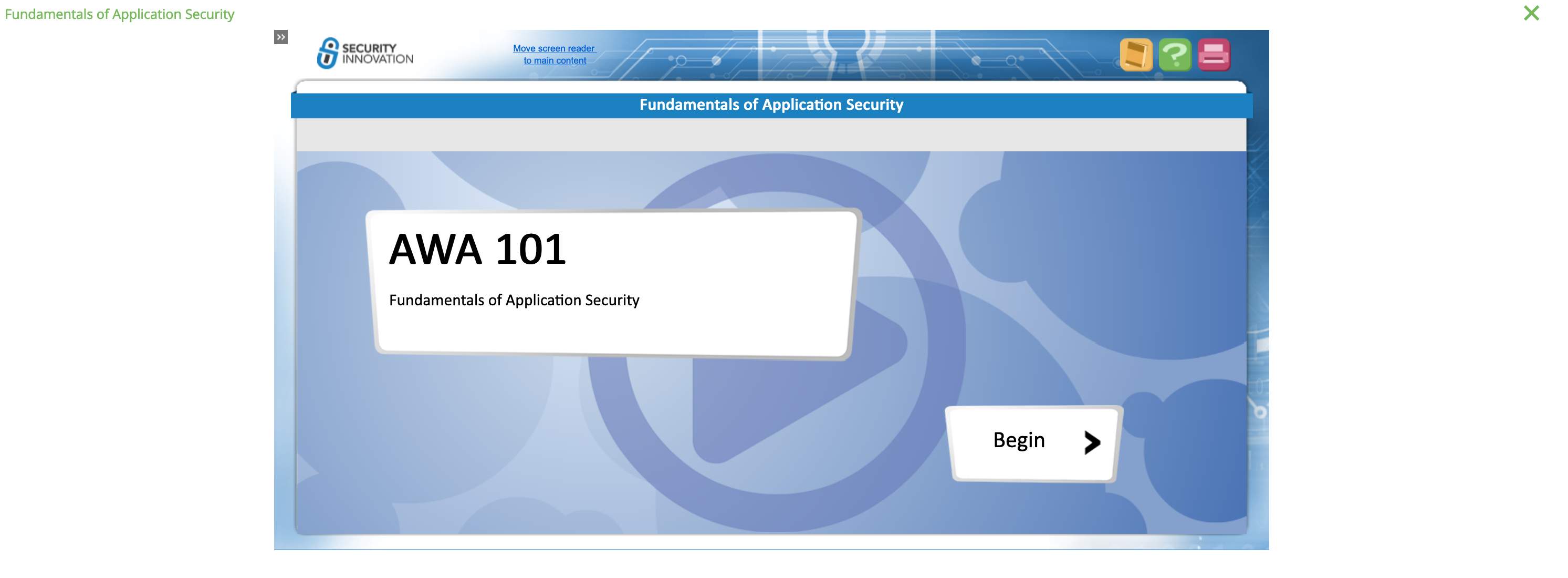
After clicking on launch you will be presented with the course’s first slide which will ask you to begin the Lesson:
If you need help with course navigation or UI elements click on the Green Question Mark (?) in the Upper Right Hand Corner of the player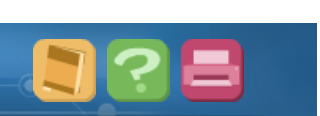
Note that a disconnection from the server will cause tracking to be interrupted and course progress will not be recorded. If your system times out or you experience loss of connection, refresh your login and re-launch the course.
If you experience any completion issues please contact your Training Supervisor with all the relevant information (status, grade achieved) and your record will be manually updated.
Once you’ve completed the course pane will update with a link to your certificate of completion, display the total Credits awarded (1 credit = 1 course hour)
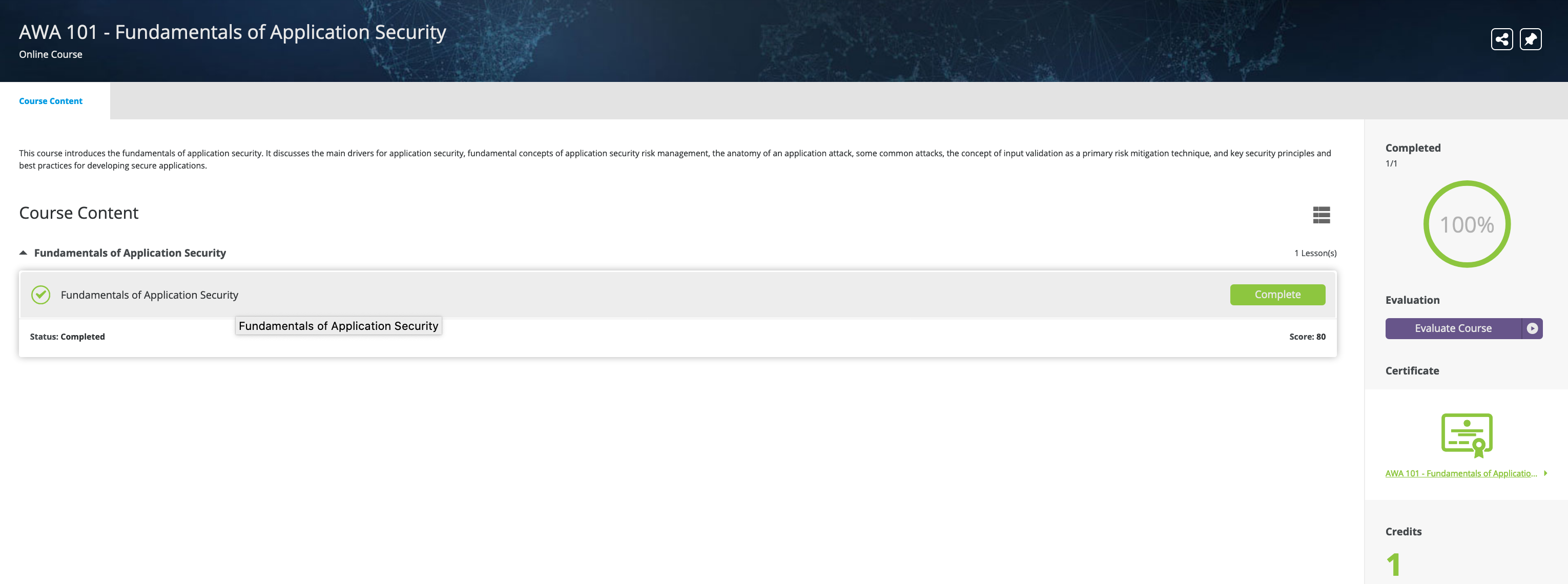
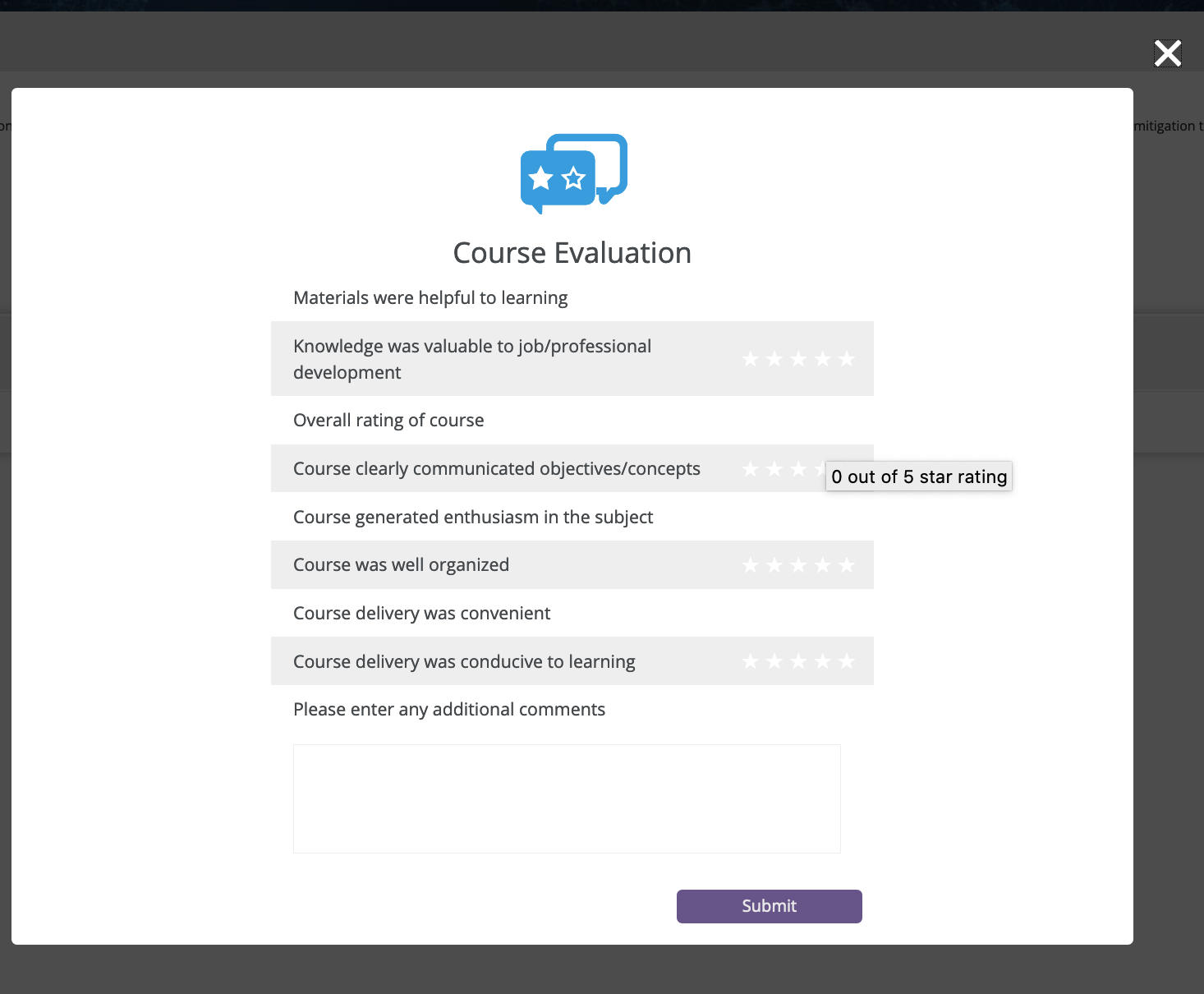
You will also see that the optional Course Evaluation has been marked as an active item. Please use this forum to provide us with feedback on your experience within your course and the Application Security Portal.
When a course is completed, you will also have the corresponding Certificate of Completion available directly under your progress bar on the left-hand side of the screen.
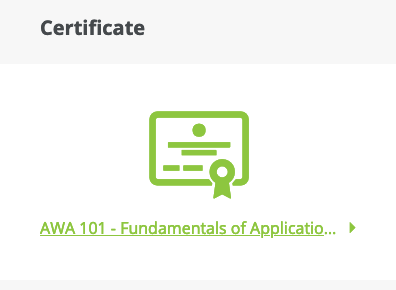
To access and print your Certificate of Completion, click the Certificate button and it will be displayed in a new browser window.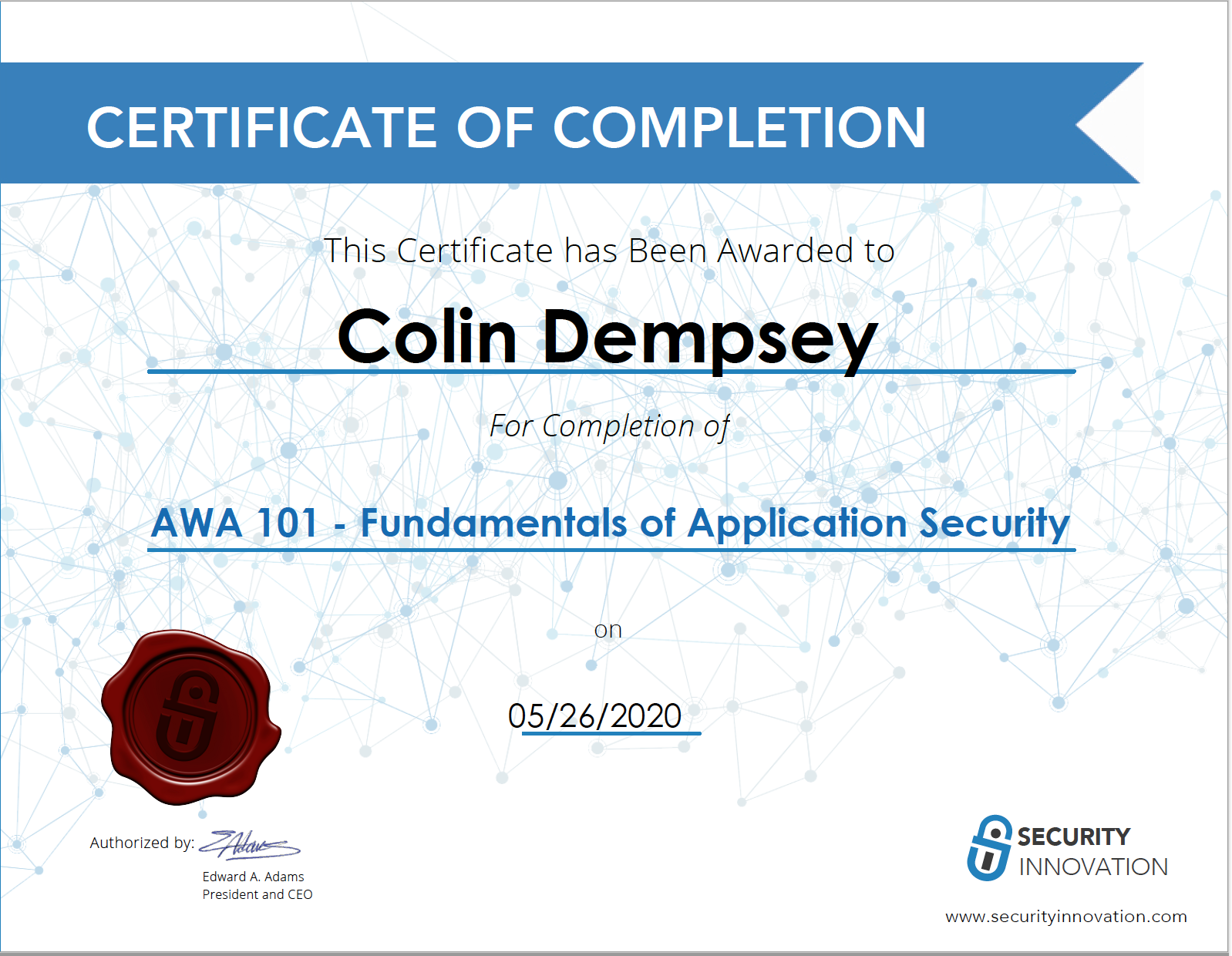
Comments
0 comments
Article is closed for comments.